
Here is a short checklist to consult if your IDE consumes a lot of CPU when idle, or if you think CPU usage is just too high (per example when typing code). I will start with the most obvious causes.
Avoid “Islands” themes
Are you using the new “Islands” theme? If so, try choosing a different theme, like Dark, Light, or Darcula.
Islands themes are very new are they are known to cause high CPU usage for some users. JetBrains is aware of this, and tickets have been opened in YouTrack. Let’s hope a future update will fix this annoying issue.
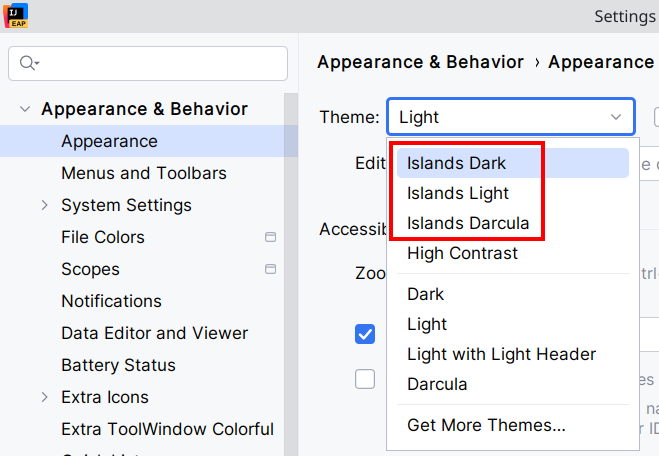
I verified this in my dev box (Arch Linux / KDE, in a VirtualBox VM). IntelliJ was constantly using ~10 to ~40% of my four virtual CPUs, for nothing. After I switched to the Light theme, the average CPU usage was back to normal, i.e. near 0%.
Disable local AI/ML tools
Local AI tools may also consume a lot of CPU. Start by disabling all the Machine Learning features. You can do this in settings, or by disabling the relevant plugins directly.
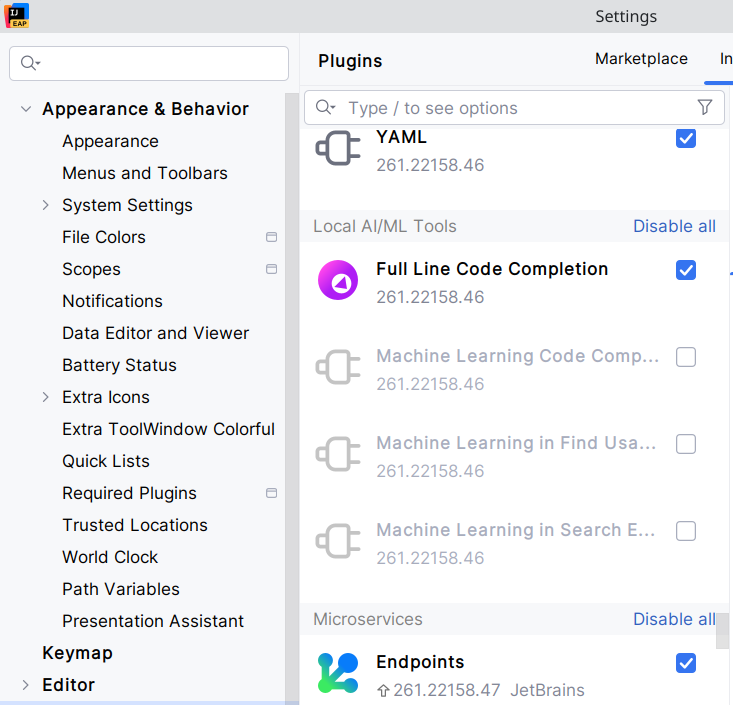
If you don’t need them, disable also all the other AI features.
Linux + Wayland? Re-enable IDE’s X11 support
If you’re using IntelliJ (or any IntelliJ based IDE) 2026.1 EAP on Linux, and if your desktop environment uses Wayland, the IDE now automatically enables its native Wayland support. Try to switch back to its X11 support by going to Help > Edit Custom VM Options, paste -Dawt.toolkit.name=XToolkit and restart. Wayland will use its X11 compatibility layer. This may also fix some graphical glitches.
I also verified this in my dev box. For me, IntelliJ’s Wayland native support is not ready. Its UI was terribly laggy (even for a virtual machine), and graphic elements lacked clarity, it looked like a bad anti-aliasing.
Configure your antivirus
You may want to whitelist some directories and processes used by your IDE. Please read this article from JetBrains.
Nota: on Windows, and if using the integrated Windows Defender, your IDE may ask you to automatically whitelist the relevant directories. Meanwhile, it might fail silently. Be sure that Defender is correctly configured, and do it manually if needed.
Check installed third-party plugins
Third-party plugins can be poorly optimized, especially many of the low-quality AI plugins that have appeared on the JetBrains marketplace since a year or two. Non-AI plugins may also be to blame.
So, I’m not saying you should not use third-party plugins, but let’s try to disable them and see what happens. If it helps, enable them one by one, and you will know which plugin(s) was faulty. If it happens, you should contact the author of the plugin and open an issue.
Take also some time to verify if you’re not using unmaintained plugins. Some plugins author may abandon their plugins, but these may still be available on the marketplace and be compatible with recent IDEs. JetBrains APIs evolve over time, and unfortunately, some plugins may use them incorrectly, which can impact performance or stability.
Using VirtualBox?
Even if your IDE is running in the host or the guest system, you may want to disable VirtualBox’ “Shared Clipboard” and “Drag-and-Drop” features.
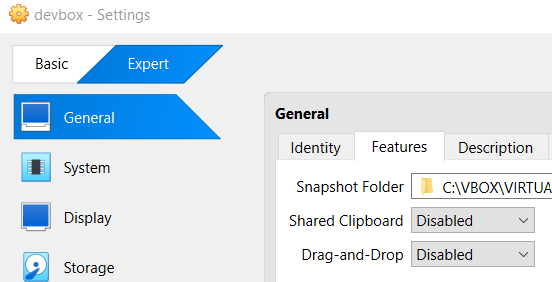
For me (and my dev box 😋), having these features enabled results in frequent and high CPU usage (and sometimes the freezing of applications like IntelliJ or Firefox) on both the host and guest systems. Everything went back to normal once I disabled them. I spent quite a bit of time identifying the cause of these problems, which is why I am sharing this tip.