
This is highly opinionated. If, like me, you don’t like the UI of Windows 11, this is how I tweaked it.
Windhawk
Users of Windows 10 (and 8 or 7) may know 7+ Taskbar Tweaker. I use it to disable icon grouping in the taskbar. Unfortunately, it doesn’t work on Windows 11. Instead, its author created a new and powerful software called Windhawk. It’s free, and it supports most of the 7+ Taskbar Tweaker features, plus extras. It can modify the taskbar, the Start Menu, the File Explorer, the Task Manager, etc.
It works by enabling mods. Mods are small pieces of (open-source) C++ code that Windhawk will compile for you. It’s super fast and stable.
My collection of mods (the screen captures are partially in French):
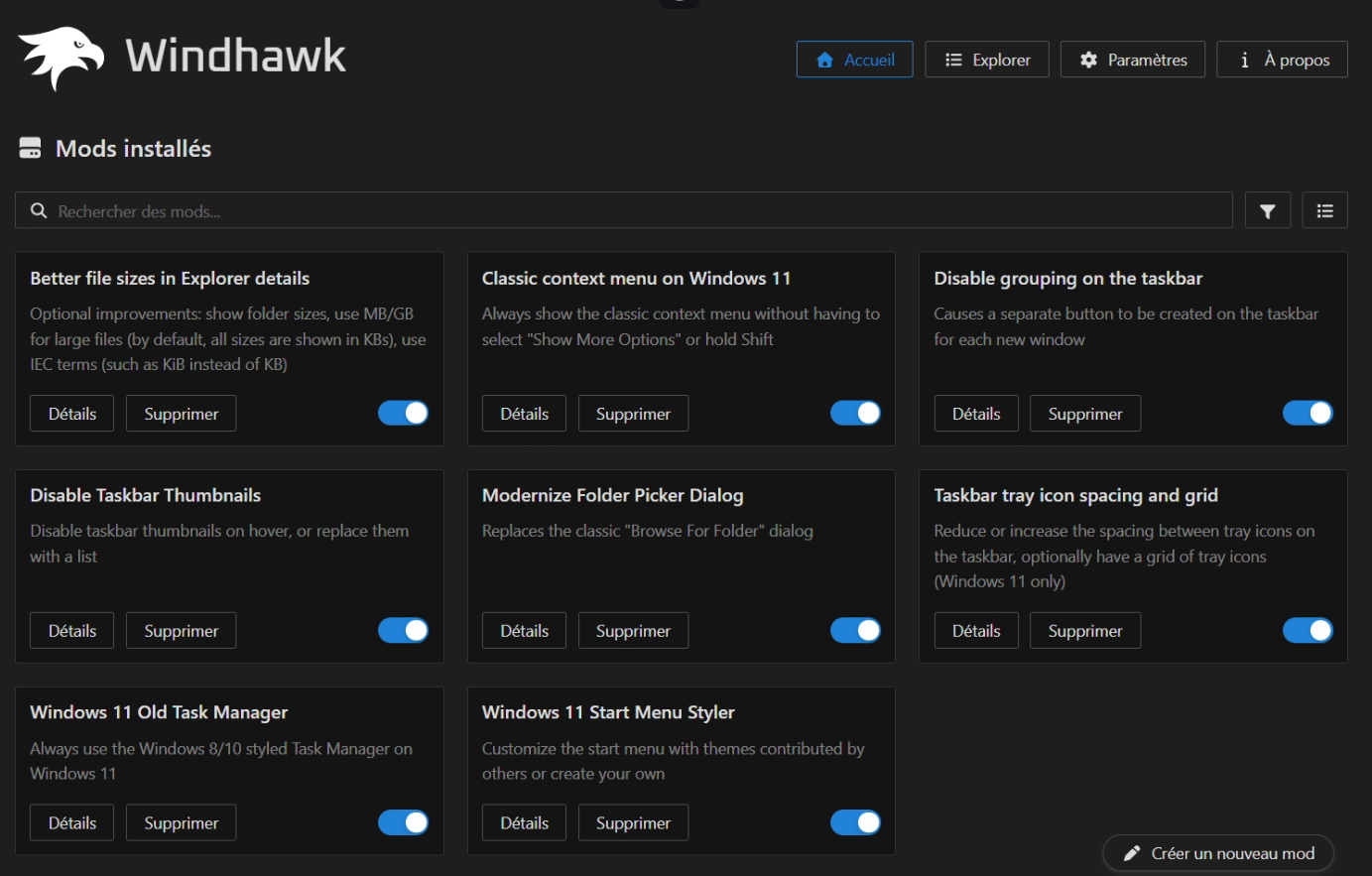
With that:
- I disabled icon grouping in the task bar
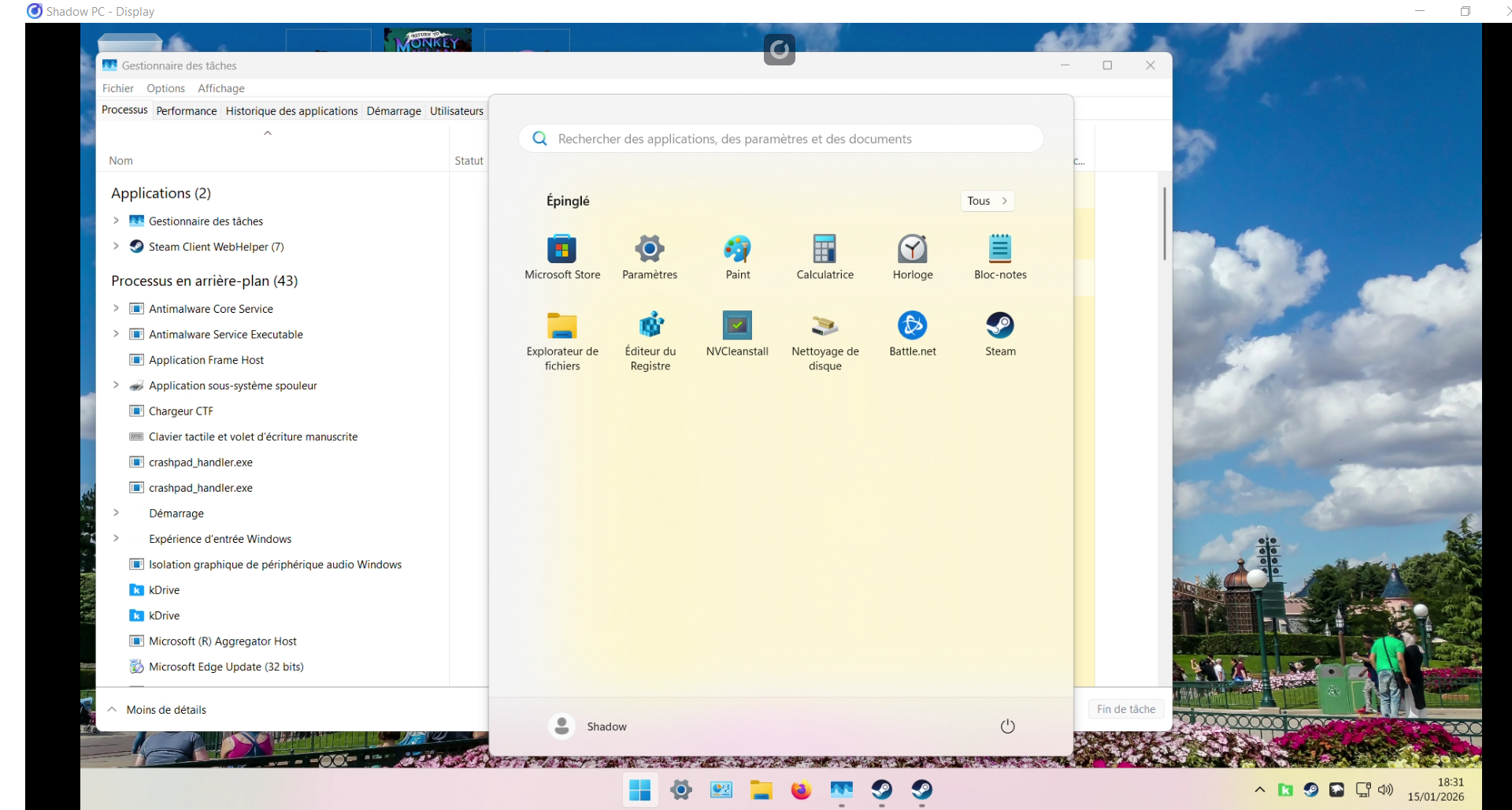
- I disabled recommendations in the Start Menu
- I enabled the Windows 10 UI of the Task Manager
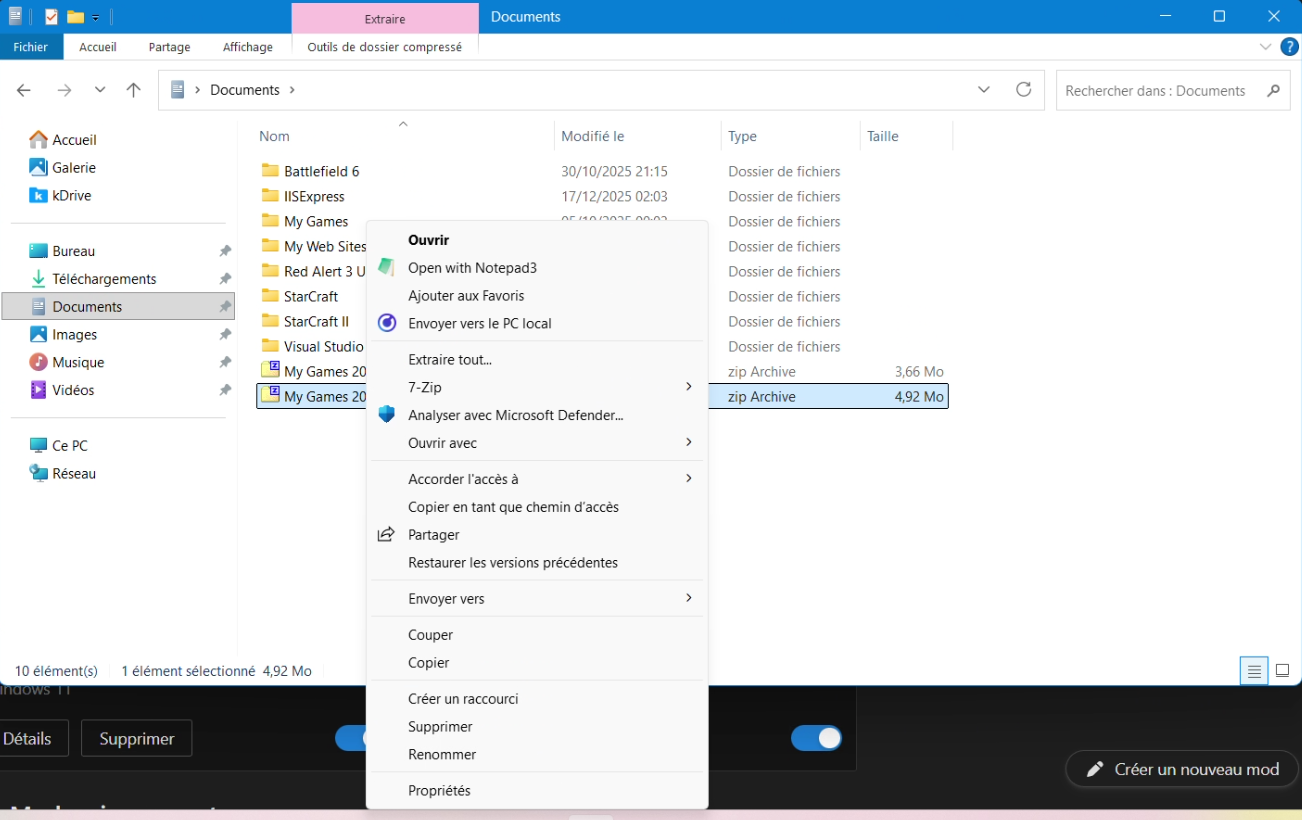
- I restored the Windows 10 File Explorer (which is much faster than the Windows 11 version)
- I restored the Windows 10 context menu
- I enabled file sizes in KB, MB, and GB in the File Explorer
- I disabled the thumbnail (and the list) when hovering an icon in the task bar
- I adjusted the size of the icons in the task bar
WinSetView
WinSetView is another great, free software. It allows you to set the Windows File Explorer default folder views, permanently. I’m using it because (at least my) Windows 11 was constantly restoring the “Group by” feature in the File Explorer, which made me crazy. WinSetView fixes that by using some bat/powershell scripting. You can do this by hand (there are many tutorials online), but the WinSetView is just handy.
Of course, there are plenty of good alternatives. I’m just happy with these two excellent softwares, and I hope it helps 😉