
These are my settings every time I test a new IDE. These changes will not suit everyone, but it may be worthwhile to be aware of them.
Appearance
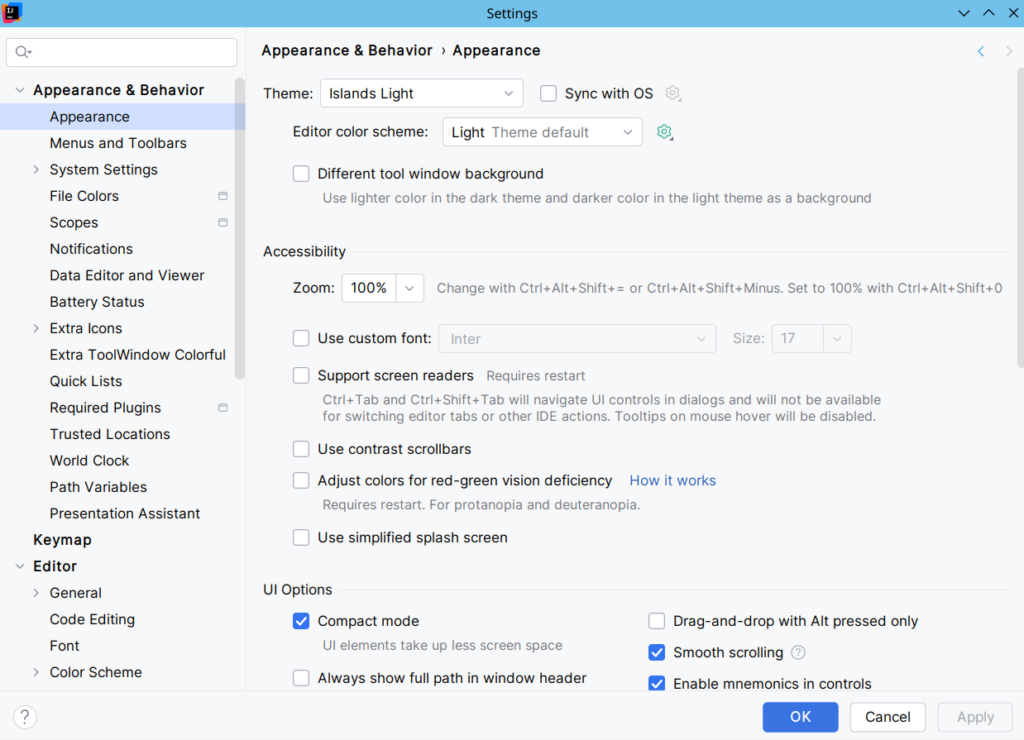
In File | Settings | Appearance & Behavior:
- Theme: pick the right theme for you: Light or Dark, Island… or download the Classic UI plugin if you prefer the old UI.
- UI Options: enable or disable Compact mode. This will adjust the size of the tool window buttons and editor’s tabs.
- UI Options: disabling Use project color in main toolbar can fix some performance issues.
- UI Options, Main menu: choose Merge with Main Toolbar or Show above Main Toolbar to a fast get access to the main toolbar.
- Tree Views: enable Use smaller indents. I see no reasons to keep it unselected. This will save some horizontal space in most tree views, like the Project view.
System Settings
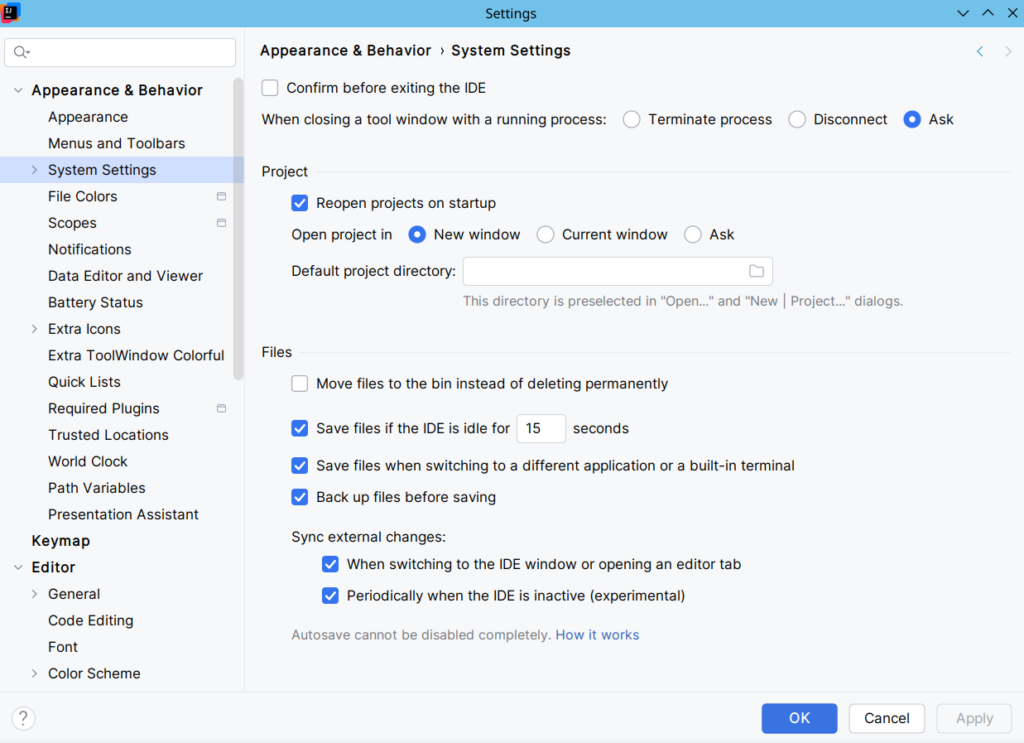
In File | Settings | Appearance & Behavior | System Settings:
- Unselect Confirm before exiting the IDE.
- Project: enable Reopen projects on startup. It may be unselected by default on a few IDEs.
- Project: fill the Default project directory field. This will change the default location of the File browser when opening a new project.
- Files: unselect Move files to the bin instead of deleting permanently. You should use a VCS, and, ultimately, the local history can still restore most deleted files. I don’t understand why it’s enabled by default.
- HTTP Proxy: configure a proxy if needed. This is probably the first thing to do at work.
- Updates: unselect Show What’s New in the editor after an IDE update if you don’t this.
Editor
In File | Settings | Editor:
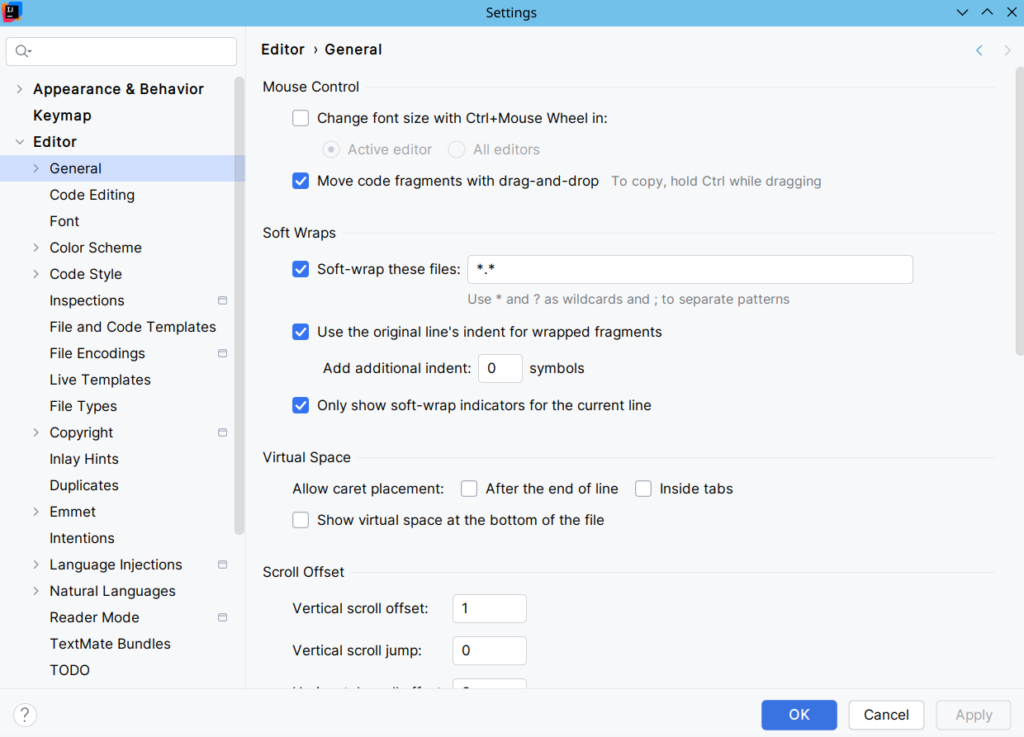
- General | Soft Wraps: update Soft-wrap these files. Add your preferred files, or use something like
*.*.
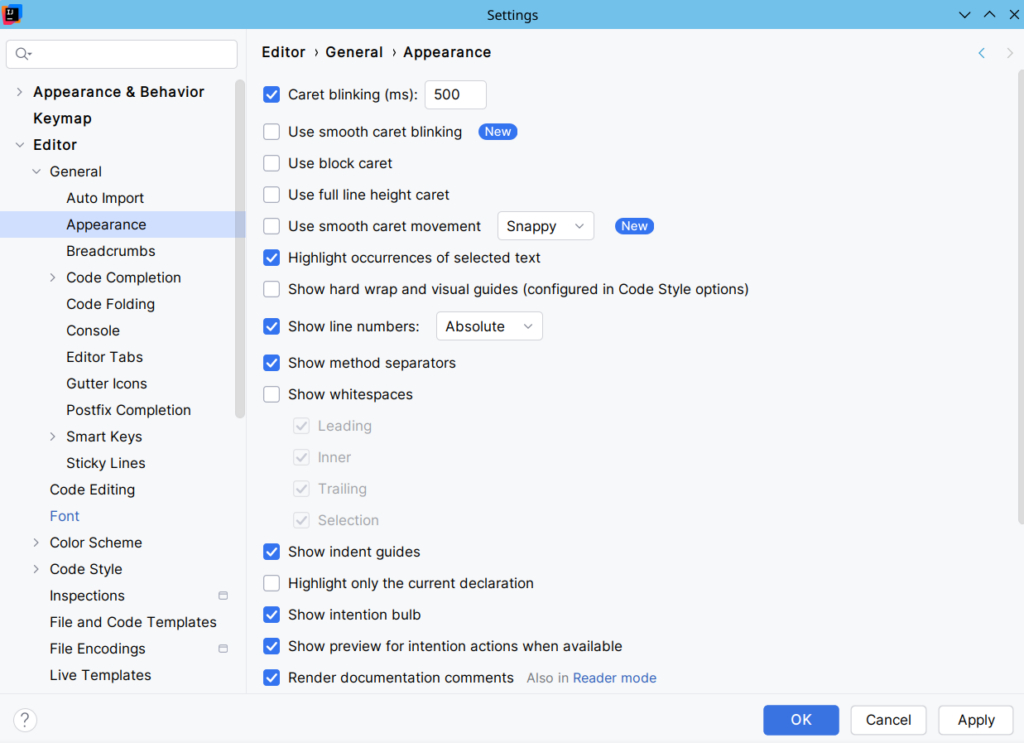
- General | Appearance: enable Show method separators.
- General | Appearance: unselect Use smooth caret blinking and Use smooth caret movement. They should be unselected by default, but if you tried a 2026.1 EAP IDE, they were enabled by default. These features can have a negative impact on the IDE responsiveness.
- General | Console: enable Use soft wraps in console if needed.
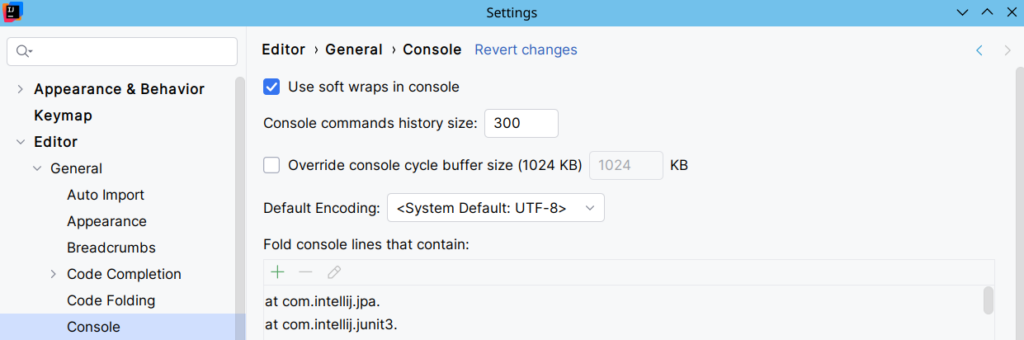
- General | Editor Tabs: change the value of Show tabs in to Multiple rows if you used to have many files opened in the editor.
- General | Editor Tabs: you may like the Show pinned tabs in a separate row option.
- General | Editor Tabs | Opening Policy: unselect Enable preview tab. This is so annoying.
- General | Editor Tabs | Closing Policy: raise the Tab limit to 30 (max value) if you used to have many files opened in the editor.
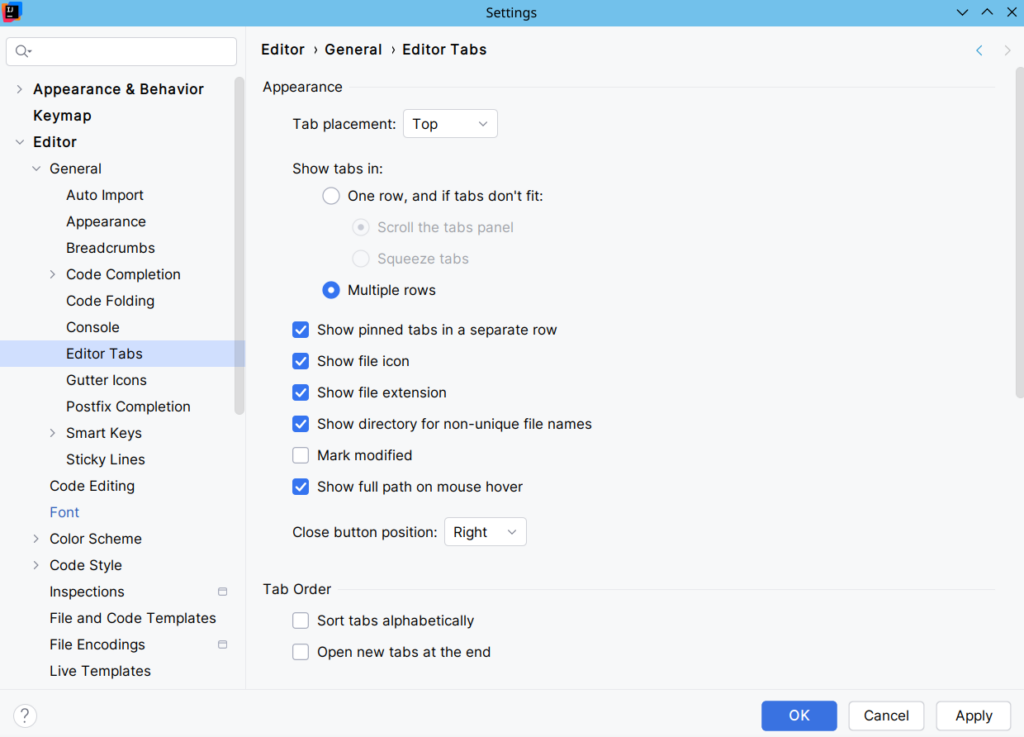
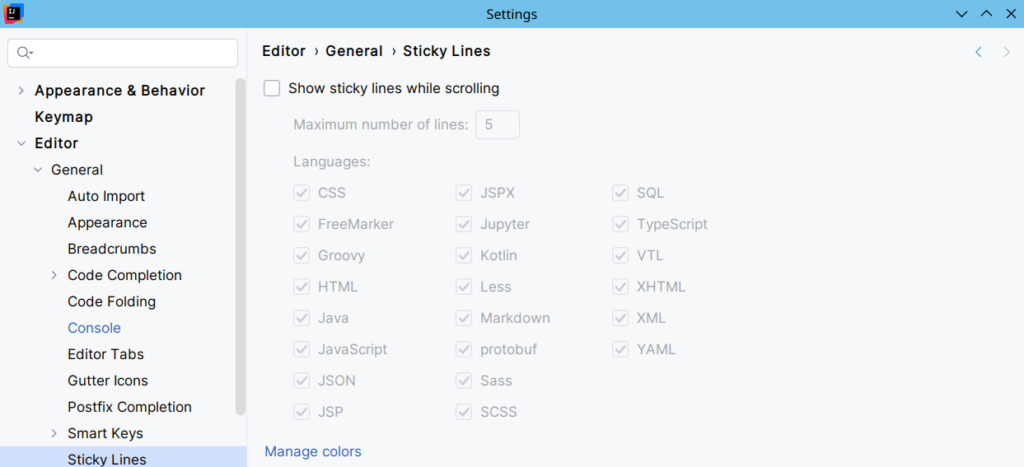
- General | Sticky Lines: unselect or configure Show sticky lines while scrolling if you don’t like this feature.
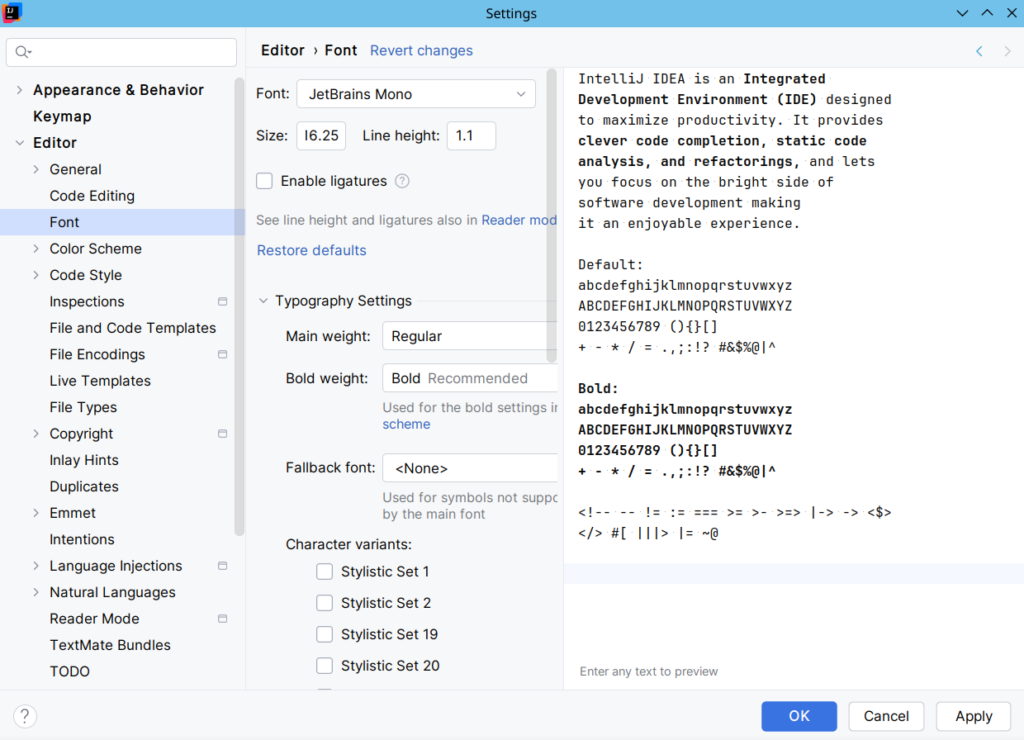
- Font: choose your favorite font and adjust the Size and Line height. Select Enable ligatures if you like it. Finally, play with the Typography Settings and the Characters variants (it’s new) if you want.
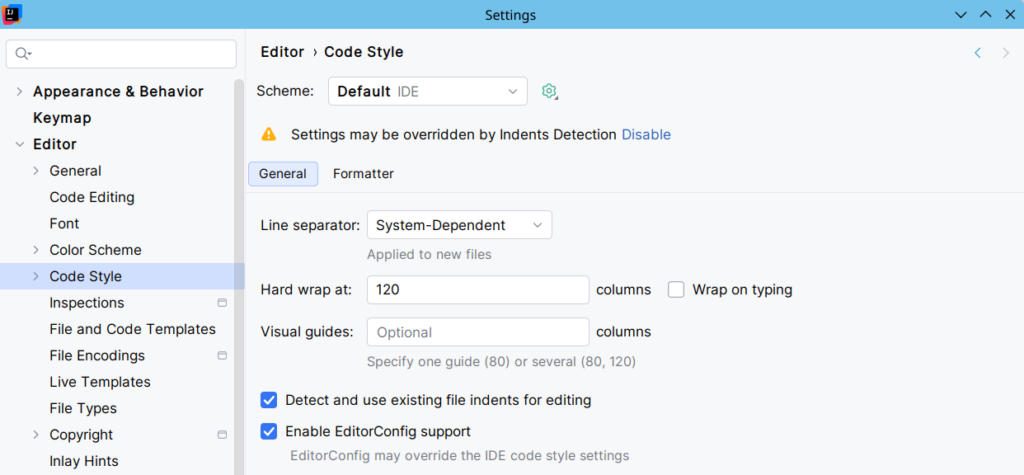
- Code Style: we’re in 2026, do you really want to hard wrap at 80 characters? Adjust the Hard wrap at field (120 for me). You may also want to configure this in your
.editorconfigfile.
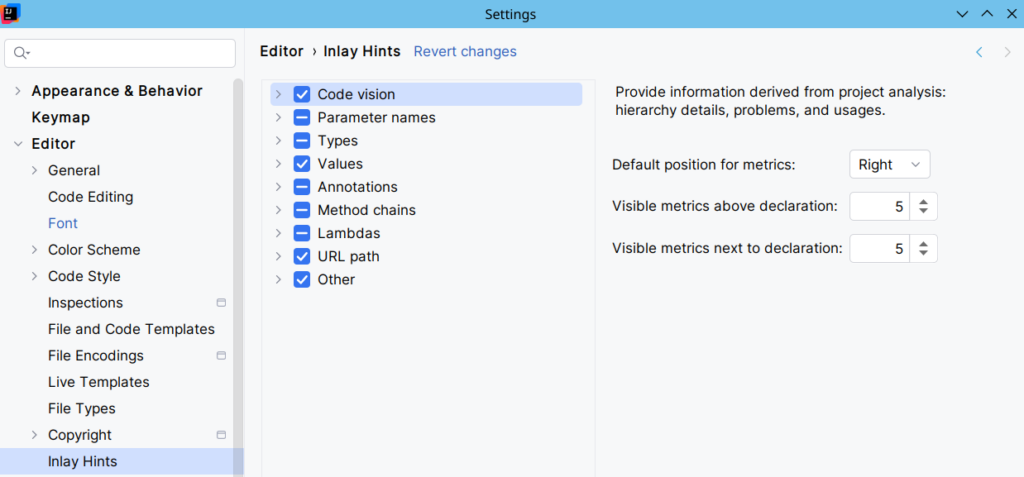
- Inlay Hints: select the Code vision hint, then move it to the right to save horizontal space in the editor (Default position for metrics: Right).
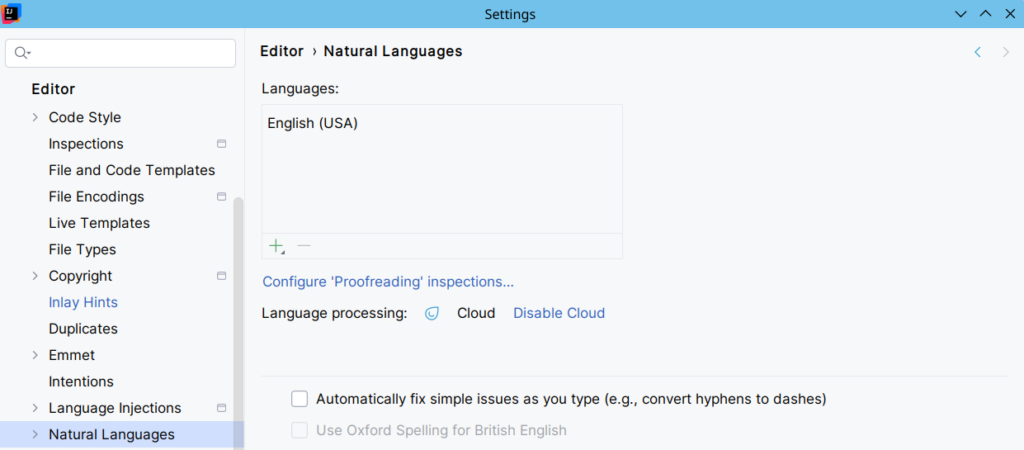
- Natural Languages: if you have a paid subscription to the JetBrains AI tools, and if you miss the Grazie spell checker, it’s here: Language processing, click on Enable Cloud.
Version Control
In File | Settings | Version Control:
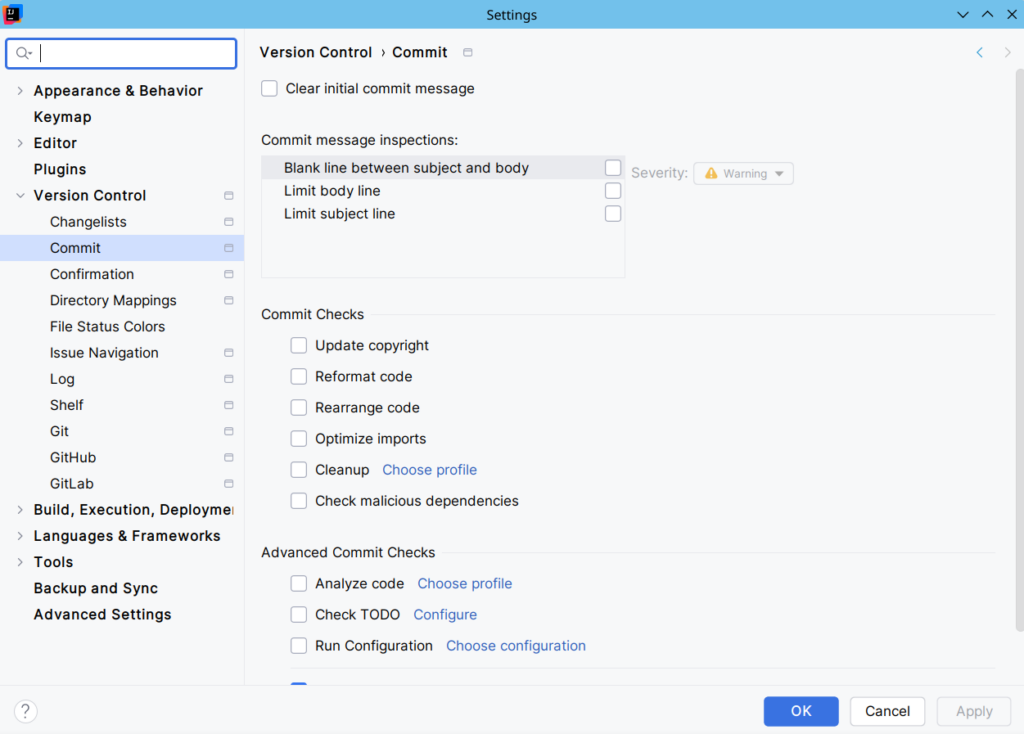
- Commit: unselect Commit Checks and Advanced Commit Checks if wanted. I found them annoying.
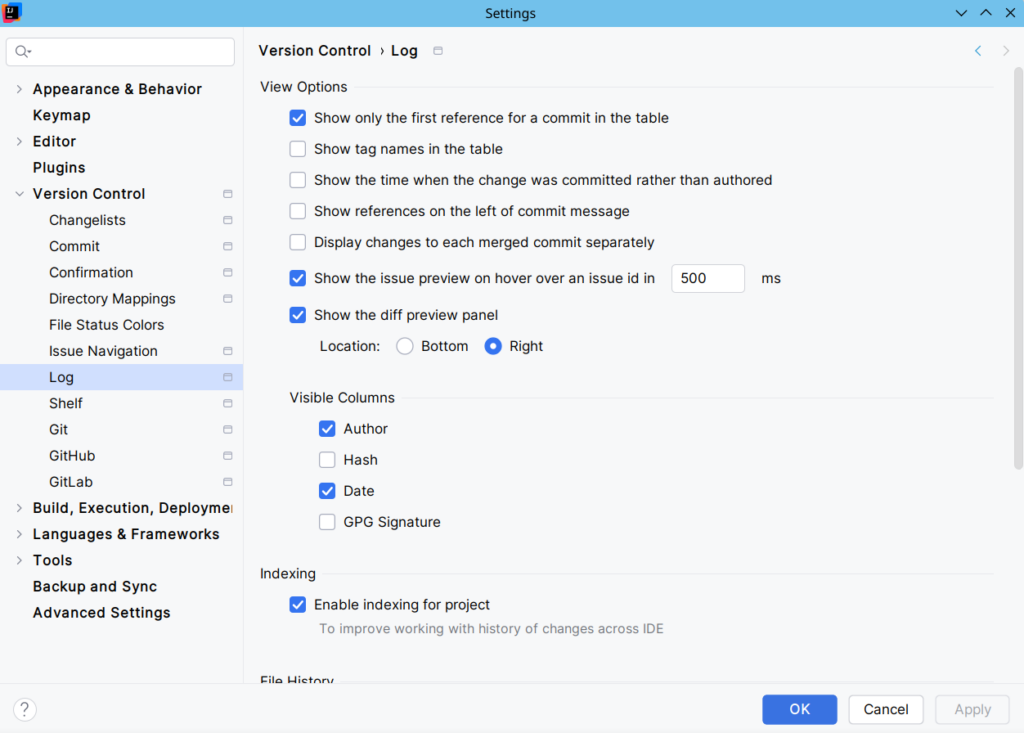
- Log | View Options: set Show the diff preview panel to Right if you don’t have a giant screen.
- Log | File History: again, set Show the diff preview panel to Right.
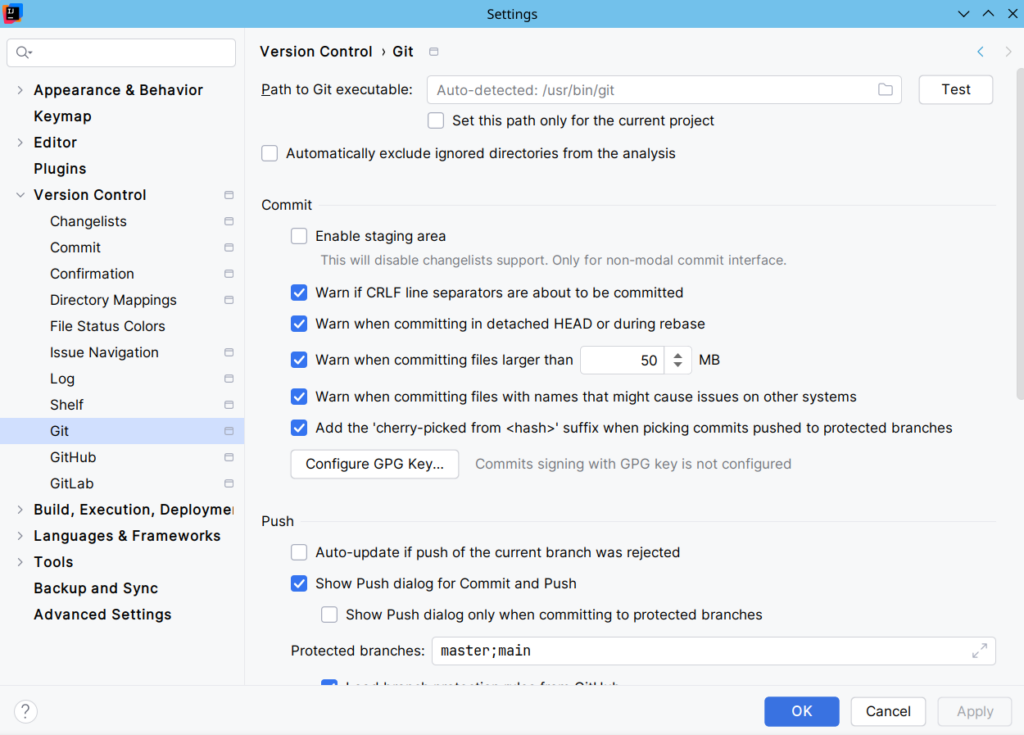
- Git | Commit: configure your GPG key if needed.
- Git | Push: edit the Protected branches field if needed.
- Git | Update: you may want to set Update method to Rebase instead of Merge. This will help you to keep your Git history clean.
Tools
In File | Settings | Tools:
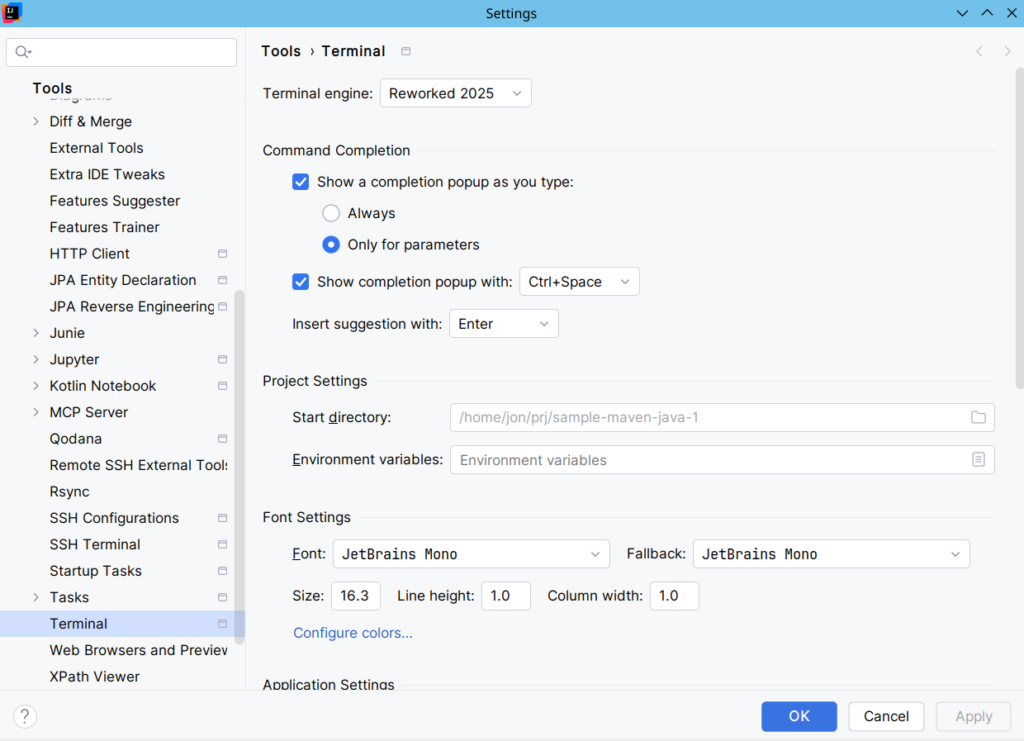
- Terminal | Terminal engine: if you don’t like the new terminal (Reworked 2025), get back to the Classic terminal.
- Terminal | Font Settings: the default font may be too big. Adjust the size and line height if needed.
- Terminal | Application Settings: change the Shell path if needed. On Windows, I prefer to select the
C:\Windows\system32\cmd.exeapplication or the unix-like shellC:\Program Files\Git\bin\bash.exethat comes with Git rather than PowerShell.
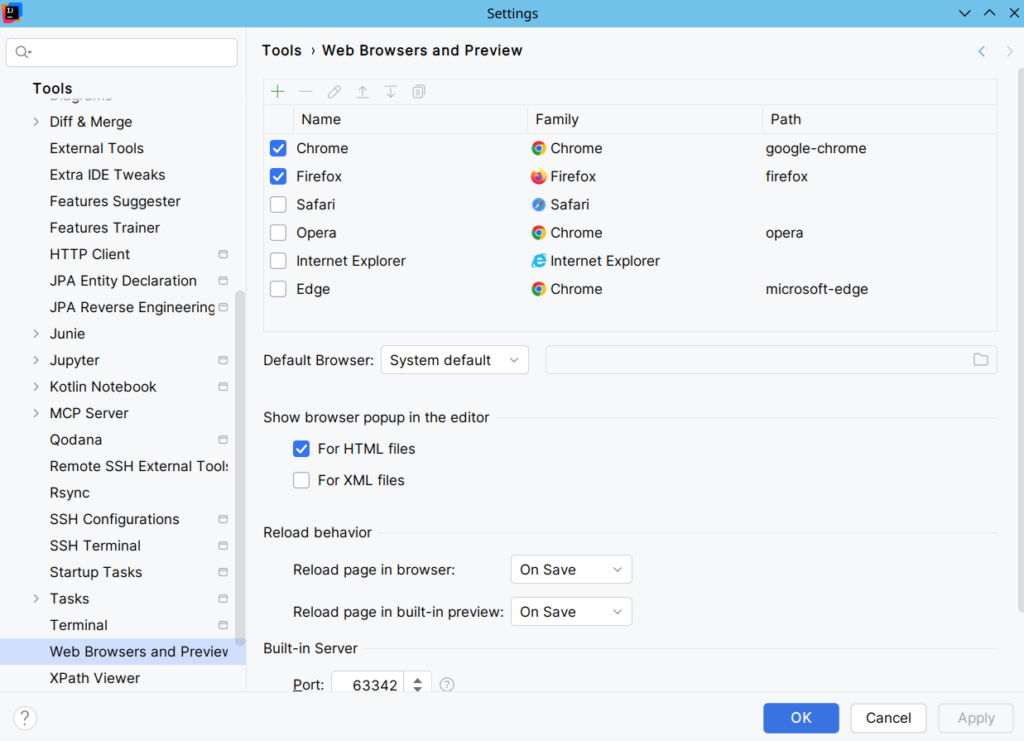
- Web Browsers and Preview | Default Browser: you may want to use a non-default browser here, like Firefox Developer Edition or Chrome Canary.
- Web Browsers and Preview | Show browser popup in editor: unselect For HTML files and For XML files if you find the floating browser icon annoying.
Advanced Settings
You may want to change the advanced settings to bring back the modal commit interface for Git. As explained here, select Use modal commit interface for Git and Mercurial.
Also, some interesting settings:
- Documentation Components: select Syntax highlighting of links on code elements. This helps you to identify URL elements in code.
- Editor: Force soft wrap in documents with lines longer than XXX characters. I find this feature useful, since I often work with single-line SVG files. I set XXX to 150. Keep in mind this can have a negative impact on performance when opening big files.
- Startup: unselect Open README.md file if there are no open files on project startup. So annoying.
- Version Control. Git: set Show branch names in the list of recent projects to Projects with identical names. Otherwise, you may always see branch names in the list of recent projects. I prefer to see the branch names only if I have multiple projects with the same name, per example for git worktrees. Otherwise, I don’t get the point of seeing the Git branch name here.
Tip: use the search field at the top of the dialog box to find the right settings 😉
Don’t hesitate to share your favorite settings.